
Scripts
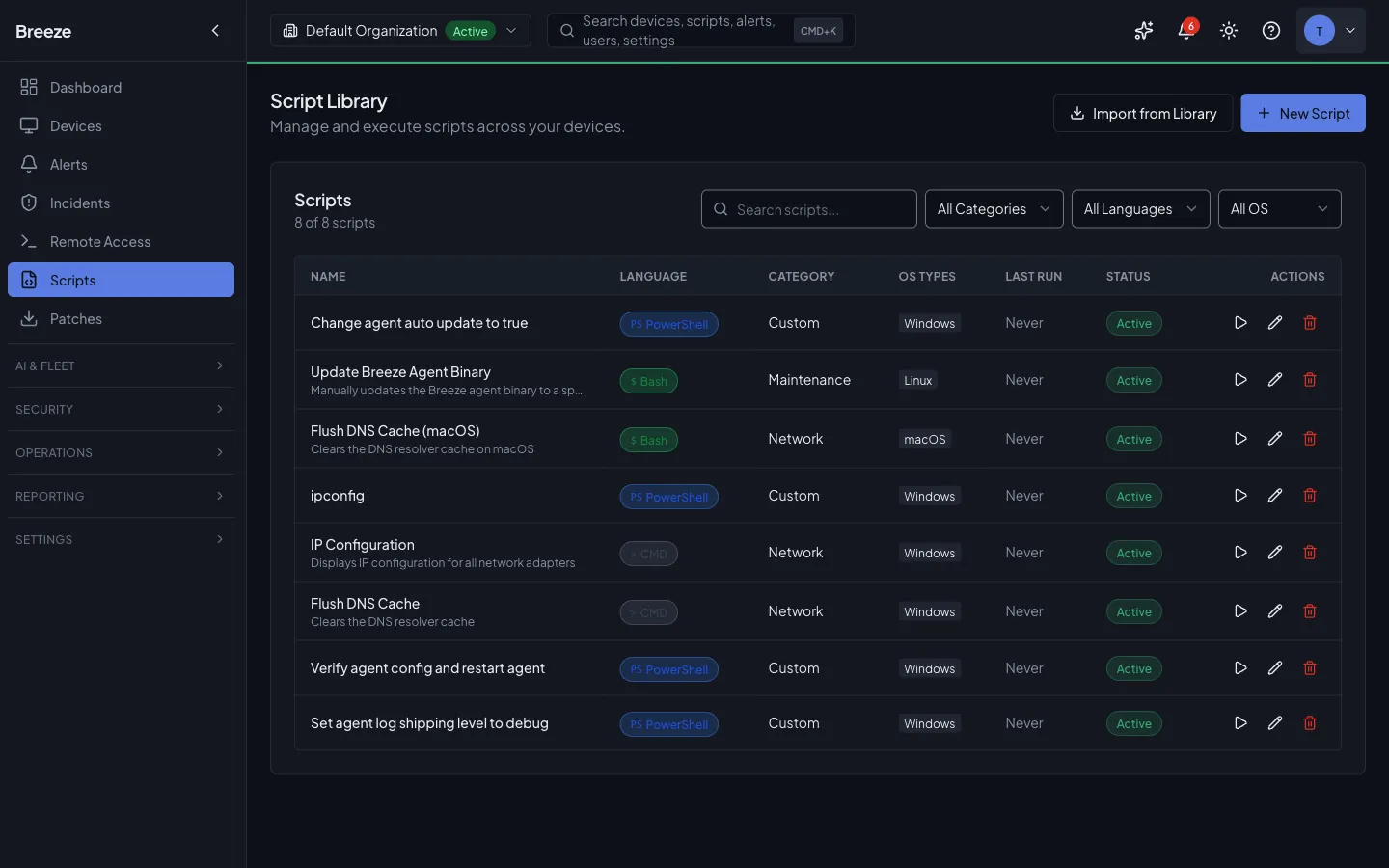
Scripts let you define reusable code that runs on managed devices across your fleet. Each script has a language, a set of compatible operating systems, optional parameters, and a configurable execution context. Scripts can be triggered manually, on a schedule via Automations, in response to alerts, or through configuration policies.
The Breeze agent writes the script to a temporary file on the target device, runs it through the appropriate shell, captures stdout and stderr (up to 1 MB each), and reports the result back. Scripts are cleaned up from disk immediately after execution.
Script Library
Section titled “Script Library”The Scripts page in the sidebar opens the Script Library, where you manage all your organization’s scripts and import shared system scripts.
Browsing and searching
Section titled “Browsing and searching”The Script Library displays your scripts in a searchable list with columns for name, language, category, target OS, and last run time. Use the search bar and filters to find scripts by name, language, category, or OS type.
Importing from the system library
Section titled “Importing from the system library”Breeze provides a shared system library of pre-built scripts available to all organizations. To import one:
-
Open the library. On the Scripts page, click Import from Library in the top-right corner.
-
Browse and search. The System Script Library modal shows all available scripts with their name, description, language, category, and compatible OS types. Use the search bar and category filter to find what you need.
-
Import a script. Click the Import button next to a script. It is copied into your organization’s library where you can customize it. Already-imported scripts show an “Imported” badge.
-
Close and customize. Click Done to close the library. The imported script now appears in your Scripts list and can be edited to fit your environment.
Creating a script
Section titled “Creating a script”-
Start a new script. On the Scripts page, click New Script. The script editor opens.
-
Enter script details. Fill in the script name, select a category, choose the language (PowerShell, Bash, Python, or CMD), and toggle the target operating systems (Windows, macOS, Linux).
-
Write the script. Use the built-in Monaco code editor with syntax highlighting. The AI Assistant button (or keyboard shortcut) opens a side panel where the Breeze AI can help generate, explain, or refine your script.
-
Add parameters (optional). Expand the Parameters section and click Add parameter to define runtime variables. Each parameter has a name, type (string, number, boolean, or select), default value, and required flag. Reference parameters in your script as
{{paramName}}. -
Configure execution settings (optional). Expand Execution Settings to set a custom timeout (default 300 seconds) and the run-as context (System, Logged-in User, or Elevated).
-
Save. Click Create Script. The script is now available for execution. You can use keyboard shortcut Cmd+S (or Ctrl+S) to save quickly.
Version history and rollback
Section titled “Version history and rollback”When you edit a script’s content, the version number increments automatically. From the script editor, click Execution History to navigate to the script’s execution page, or view the Version History panel to compare changes between versions using a side-by-side diff view. You can roll back to a previous version by clicking the Rollback button next to any earlier version.
Running a Script
Section titled “Running a Script”-
Select a script. On the Scripts page, click the play button next to the script you want to run. The execution modal opens.
-
Review script info. The modal shows the script’s language, category, target OS, and description.
-
Choose the run-as context. Select System (runs as the agent service account) or Logged-in user (runs in the active user session).
-
Fill in parameters. If the script defines parameters, fill in the values. Required parameters are marked with an asterisk. Boolean parameters show as checkboxes; select parameters show as dropdowns.
-
Select target devices. The device list shows only devices with a compatible OS. Filter by hostname search, site, or status (online/offline/maintenance). Click checkboxes to select individual devices, or click Select all online to target all compatible online devices. An Advanced Filters button opens the full filter builder for complex targeting.
-
Confirm and execute. Click Execute. A confirmation banner appears showing the script name, device count, and run-as context. Click Confirm Execute to dispatch the script. A progress indicator shows submission status across all targeted devices.
Viewing Execution History
Section titled “Viewing Execution History”Navigate to Scripts and click a script name to open the editor, then click Execution History in the top-right corner. The Execution History page shows all past runs for the script.
- Search and filter. Filter by status (Pending, Running, Completed, Failed, Timeout), time range (Last Hour, Last 24 Hours, Last 7 Days, Last 30 Days), or search by script name or device hostname.
- Sort columns. Click column headers (Script, Device, Status, Started, Duration, Exit Code) to sort ascending or descending.
- View details. Click any execution row to open the detail view with full stdout, stderr, exit code, error messages, and timing information.
- Paginate. Results are paginated with 10 per page by default.
Key Concepts
Section titled “Key Concepts”Supported Languages
Section titled “Supported Languages”| Language | Extension | Windows Shell | macOS / Linux Shell |
|---|---|---|---|
powershell | .ps1 | powershell.exe -NoProfile -ExecutionPolicy Bypass -File | pwsh -NoProfile -ExecutionPolicy Bypass -File |
bash | .sh | bash.exe (Git Bash / WSL) | /bin/bash |
python | .py | python | python3 |
cmd | .bat | cmd.exe /C | Not available |
Privilege Levels
Section titled “Privilege Levels”| Run As | Behavior |
|---|---|
system | Runs as the agent service account (default). No special configuration required. |
user | Runs in the context of a connected user session. Requires an active user helper session on the device. |
elevated | Runs with root/administrator privileges. On Unix, the agent uses sudo -n. On Windows, the agent service must already be running as administrator. |
Execution Status
Section titled “Execution Status”| Status | Meaning |
|---|---|
pending | Execution record created, command not yet sent to the agent |
queued | Command queued for delivery to the agent |
running | Agent has acknowledged the command and execution is in progress |
completed | Script finished with exit code 0 |
failed | Script finished with a non-zero exit code |
timeout | Script exceeded its timeoutSeconds limit and was killed |
cancelled | Execution was cancelled by a user before completion |
Trigger Types
Section titled “Trigger Types”| Type | When it fires |
|---|---|
manual | A user explicitly executes the script via the UI or API |
scheduled | An automation with a schedule trigger runs the script |
alert | An alert-triggered automation runs the script as a remediation action |
policy | A configuration policy triggers the script as part of enforcement |
Creating Scripts via API
Section titled “Creating Scripts via API”Scripts can also be created and managed programmatically. Scripts belong to an organization and are scoped by the multi-tenant hierarchy.
POST /scriptsContent-Type: application/jsonAuthorization: Bearer <token>
{  "orgId": "org-uuid",  "name": "Clear temp files",  "description": "Removes temporary files older than 7 days",  "category": "Maintenance",  "osTypes": ["windows", "linux"],  "language": "bash",  "content": "find /tmp -type f -mtime +{{days}} -delete",  "parameters": {    "days": {      "type": "number",      "default": 7,      "description": "Delete files older than this many days"    }  },  "timeoutSeconds": 120,  "runAs": "system"}
The response includes the full script object with an auto-generated id and version: 1.
Executing Scripts via API
Section titled “Executing Scripts via API”Single device execution
Section titled “Single device execution”To execute a script on one device via the API, pass a single-element deviceIds array:
POST /scripts/:scriptId/executeContent-Type: application/jsonAuthorization: Bearer <token>
{  "deviceIds": ["device-uuid"],  "parameters": { "days": "7" },  "runAs": "system"}
The API validates that the device is online, not decommissioned, matches one of the script’s osTypes, and is not suppressed by an active maintenance window. If the device’s agent is connected via WebSocket, the command is pushed immediately and the execution status transitions to running.
Batch execution
Section titled “Batch execution”Pass multiple device UUIDs to execute across several devices at once:
POST /scripts/:scriptId/executeContent-Type: application/jsonAuthorization: Bearer <token>
{  "deviceIds": [    "device-uuid-1",    "device-uuid-2",    "device-uuid-3"  ],  "parameters": { "days": "7" },  "triggerType": "manual"}
When targeting more than one device, the API creates a batch (scriptExecutionBatches) that groups individual execution records together. The response includes a batchId along with per-device execution and command IDs:
{ "batchId": "batch-uuid", "scriptId": "script-uuid", "devicesTargeted": 3, "executions": [ { "executionId": "exec-1", "deviceId": "device-1", "commandId": "cmd-1" }, { "executionId": "exec-2", "deviceId": "device-2", "commandId": "cmd-2" }, { "executionId": "exec-3", "deviceId": "device-3", "commandId": "cmd-3" } ], "status": "queued"}Pre-execution checks
Section titled “Pre-execution checks”The execute endpoint validates the following before dispatching commands:
- The script exists and the caller has org-level access to it.
- Each device exists and belongs to an organization the caller can access.
- Each device’s
osTypematches one of the script’sosTypes. - The device is not in
decommissionedstatus. - The device is not in a maintenance window with script suppression enabled.
Devices that fail any check are silently excluded. If no devices remain after filtering, the API returns 400.
Script Parameters
Section titled “Script Parameters”Parameters let you create reusable scripts with configurable values. Define parameters as a JSON object when creating the script, then pass runtime values at execution time.
Defining parameters
Section titled “Defining parameters”{ "parameters": { "threshold": { "type": "number", "default": 90, "description": "CPU usage threshold percentage" }, "service_name": { "type": "string", "description": "Name of the service to restart" } }}Using parameters in script content
Section titled “Using parameters in script content”The agent substitutes parameter placeholders before execution. Two placeholder formats are supported:
| Format | Example |
|---|---|
{{paramName}} | echo "Threshold is {{threshold}}" |
${{paramName}} | echo "Threshold is ${{threshold}}" |
Both formats are replaced with the parameter value. Parameters are also injected as environment variables with the prefix BREEZE_PARAM_:
# These are equivalent inside a script:echo "Threshold is {{threshold}}"echo "Threshold is $BREEZE_PARAM_THRESHOLD"Execution History API
Section titled “Execution History API”Listing executions for a script
Section titled “Listing executions for a script”GET /scripts/:scriptId/executions?status=completed&page=1&limit=25Returns paginated execution records with device hostname and OS type joined from the devices table. Filter by status and deviceId.
Execution detail with output
Section titled “Execution detail with output”GET /scripts/executions/:executionIdReturns the full execution record including stdout, stderr, exitCode, errorMessage, and timing fields (startedAt, completedAt). Also includes the script name, language, device hostname, and device OS type.
Cancelling an execution
Section titled “Cancelling an execution”Pending, queued, or running executions can be cancelled:
POST /scripts/executions/:executionId/cancelAuthorization: Bearer <token>The API sets the execution status to cancelled and also cancels any pending device commands associated with the execution. On the agent side, the executor terminates the process and kills the entire process group to prevent orphaned child processes.
Security
Section titled “Security”The Go agent enforces strict security validation on all script content before execution.
Blocked patterns
Section titled “Blocked patterns”The agent’s security validator operates at the Strict level by default, scanning for two categories of dangerous patterns:
Basic level — clearly destructive operations:
- Recursive deletion of root or system directories (
rm -rf /,rd /s /q C:\Windows) - Filesystem format commands (
mkfs,Format-Volume,Clear-Disk) - Direct writes to block devices (
dd of=/dev/sda) - Fork bomb patterns
- Dangerous permission changes on system paths
Strict level — potentially risky operations:
- Remote code execution patterns (
curl | bash,Invoke-WebRequest | IEX) - Credential dumping tools and techniques
- Scheduled task / persistence creation
- Privilege escalation via setuid/setgid
- HKLM registry modifications
- Sudoers modifications
Output sanitization
Section titled “Output sanitization”Script output is scanned for sensitive information before being stored. The agent redacts API keys, tokens, AWS credentials, private keys, connection strings, bearer tokens, and JWTs from stdout and stderr.
Script Approval (AI Assistant)
Section titled “Script Approval (AI Assistant)”When the Breeze AI assistant needs to run a script on a device, it goes through a tiered approval system. Script execution via the AI is classified as a Tier 3 operation, meaning it always requires explicit user approval before it can proceed.
How approval works
Section titled “How approval works”-
AI proposes a script action. During an AI chat session, the assistant may determine that running a script is necessary (for example, executing a disk cleanup or restarting a service). Rather than running it immediately, the action is flagged for approval.
-
Approval request appears. A pending approval notification appears in the AI Risk Dashboard under the Tier 3 Approval History feed. The request shows the tool name, a description of the action, the target device, and the input parameters.
-
Review and decide. An administrator reviews the proposed action and either:
- Approves — the AI proceeds with execution. The action is logged to the audit trail.
- Rejects — the AI does not execute the action. The rejection is logged with the reason.
-
Execution proceeds (if approved). The approved script runs on the target device and the AI monitors the result, reporting back in the chat conversation.
Which actions require approval
Section titled “Which actions require approval”The following script-related AI actions require Tier 3 approval:
- Run Script — executing a script on up to 10 devices
- Execute Command — running a system command on a device
- Execute Playbook — running a self-healing playbook
- Disk Cleanup (execute) — performing actual file deletion
- Create Automation — creating a new automation rule
Read-only script operations (searching the library, viewing script details, checking execution history) run automatically at Tier 1 without approval.
MFA enforcement
Section titled “MFA enforcement”All script write and execute operations require MFA verification, whether triggered by a user directly or approved through the AI workflow. If the current session has not completed MFA, the API returns a 403 error. Complete MFA verification in your account settings before approving or executing scripts.
Viewing approval history
Section titled “Viewing approval history”Navigate to the AI Risk section in the dashboard to see the full approval history. The Tier 3 Approval History feed shows all pending, approved, and rejected actions with timestamps, tool names, and who initiated the request. Use the status filter buttons (All, Pending, Approved, Rejected) to narrow the view.
API Reference
Section titled “API Reference”All script endpoints require authentication and the appropriate permission scope.
| Method | Path | Permission | Description |
|---|---|---|---|
| GET | /scripts | scripts:read | List scripts with filters (?orgId=&category=&osType=&language=&search=&includeSystem=true&page=&limit=) |
| GET | /scripts/system-library | scripts:read | List all system scripts available for import |
| POST | /scripts/import/:id | scripts:write | Clone a system script into the caller’s organization |
| GET | /scripts/:id | scripts:read | Get a single script by ID |
| POST | /scripts | scripts:write | Create a new script |
| PUT | /scripts/:id | scripts:write | Update a script (increments version on content change) |
| DELETE | /scripts/:id | scripts:delete | Delete a script (blocked if active executions exist) |
| POST | /scripts/:id/execute | scripts:execute | Execute a script on one or more devices |
| GET | /scripts/:id/executions | scripts:read | List executions for a script (?status=&deviceId=&page=&limit=) |
| GET | /scripts/executions/:id | scripts:read | Get execution detail with stdout/stderr |
| POST | /scripts/executions/:id/cancel | scripts:execute | Cancel a pending, queued, or running execution |
Troubleshooting
Section titled “Troubleshooting”Script fails with “unsupported script type”.
The agent only supports powershell, bash, python, and cmd. Verify the language field matches one of these values. If using cmd, confirm the target device is running Windows — cmd is not available on macOS or Linux.
Script times out unexpectedly.
The default timeout is 300 seconds (5 minutes). The maximum allowed timeout is 86,400 seconds (24 hours) at the API level, though the agent enforces a hard cap of 3,600 seconds (1 hour). Set timeoutSeconds when creating the script or override runAs at execution time. On timeout, the agent kills the entire process group to prevent orphaned children.
Execution stuck in pending status.
The device may be offline or its WebSocket connection to the API may have dropped. The command is persisted in the deviceCommands table and transitions to sent only when the API successfully pushes it over the WebSocket. Check the device’s connection status and ensure the agent is running.
Script rejected by security validation.
The agent’s strict security validator blocks patterns that match known destructive or suspicious operations. Review the errorMessage field in the execution detail for the specific pattern that was detected. If the script is legitimate, consider restructuring the command to avoid matching the blocked pattern. Security validation runs after parameter substitution, so a parameter value could trigger a block.